Crowdmark’s Answer grouping feature is in active development. Manual grouping is available on Administered assessments for all Crowdmark users, while AI-assisted automatic grouping remains in a limited testing environment. For more information, if you have questions or concerns, or would like to test out AI-assisted grouping, please email support@crowdmark.com. We look forward to hearing your feedback!
Answer grouping is a tool that can help streamline grading by organizing similar responses to be graded in sequence, reducing the need for context switching and improving consistency.
Once responses are grouped, Crowdmark offers two ways to grade:
Both filtered and bulk grading can be used together or separately throughout an assessment.
Bulk grading allows Instructors and Facilitators to apply a score to an entire group of responses. Bulk comments are in development and coming soon!
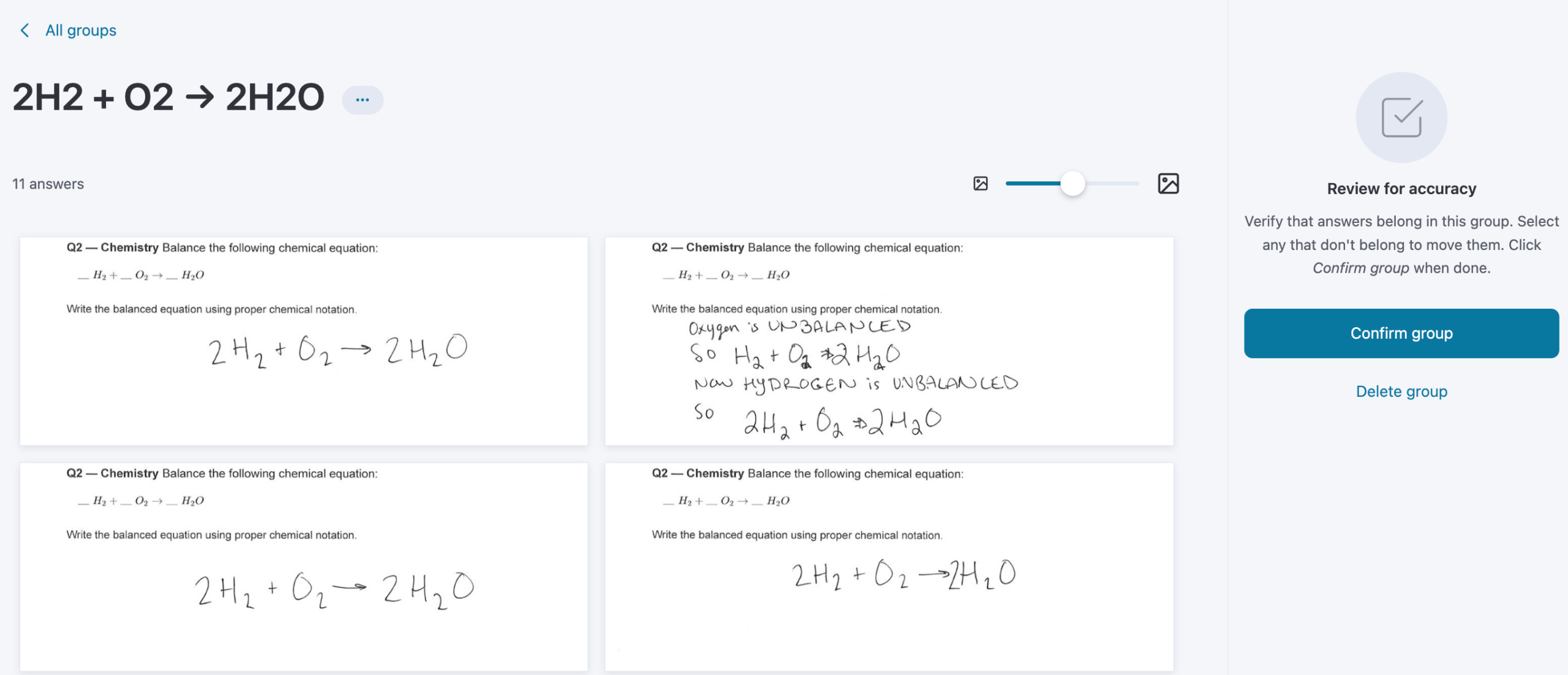
To access the Bulk grading interface, follow the instructions for Answer grouping here. Once your responses are grouped, you can review and edit the included responses, and then click Confirm group.
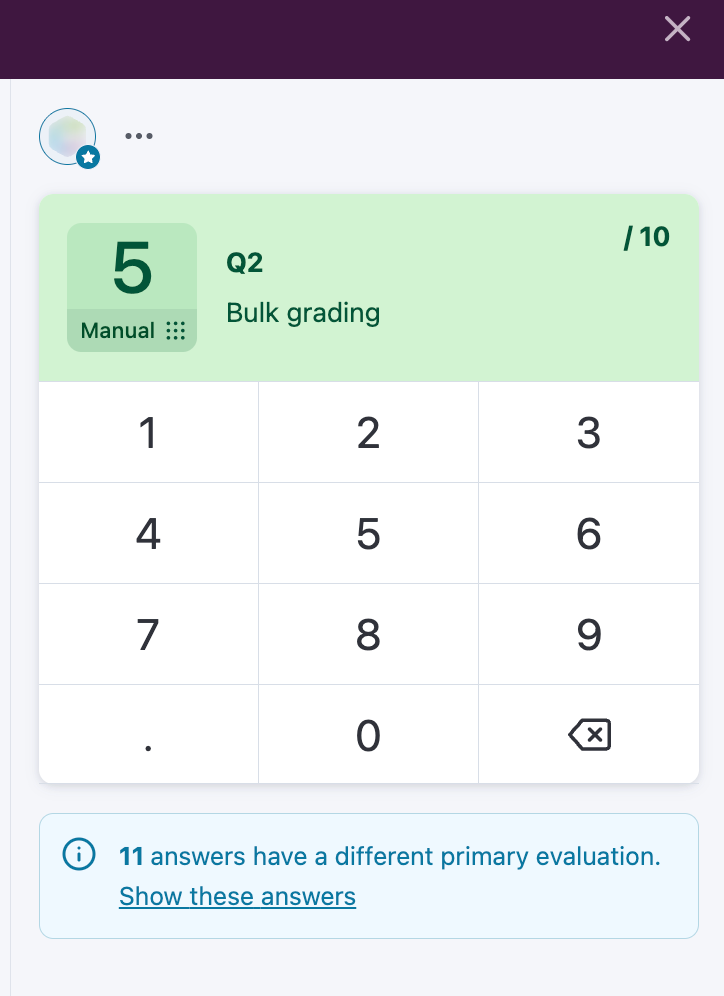
Once the group is confirmed, you’ll see the score pad to enter points. Bulk comments are in development and coming soon!
If there are responses in the group that have already been evaluated individually, you’ll see a message below the score pad. Clicking Show these answers will filter the group and show the avatar for the current Primary evaluation. To make your bulk evaluation the Primary, you can click into the filtered response and change it manually. To learn more about Primary evaluations, check out this help document.
If responses have been grouped and/or graded in bulk by another user, you’ll see the existing groups, score labels and avatars for any existing bulk evaluations when you click into the Answer grouping interface. If a bulk evaluation already exists on a group you wish to grade, you can click the plus icon to add a new evaluation.