

Crowdmark’s Answer grouping feature is in active development. Manual grouping is available on Administered assessments for all Crowdmark users, while AI-assisted automatic grouping remains in a limited testing environment. For more information, if you have questions or concerns, or would like to test out AI-assisted grouping, please email support@crowdmark.com. We look forward to hearing your feedback!
Answer grouping is a tool that can help streamline grading by organizing similar responses to be graded in sequence, reducing the need for context switching and improving consistency. It also offers the ability to apply points to an entire group of responses, boosting speed and allowing more time for responses that require a closer look.
Crowdmark offers two options, available to users with Instructor permissions:
Once your groups are created, points can be applied in bulk by an Instructor or Facilitator. For responses that will not be graded in bulk, anyone on the team will be able to use the Answer groups as a filter to grade each set of responses.
Toggle to Groups in the top toolbar.
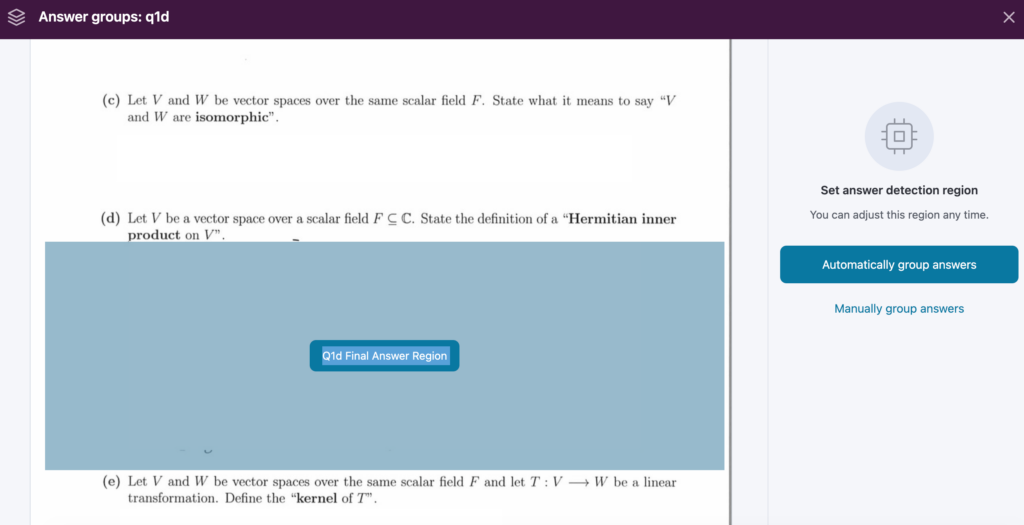
Use the box tool to highlight the area on the page where the final response should live. This is the area Crowdmark will extract for grouping.
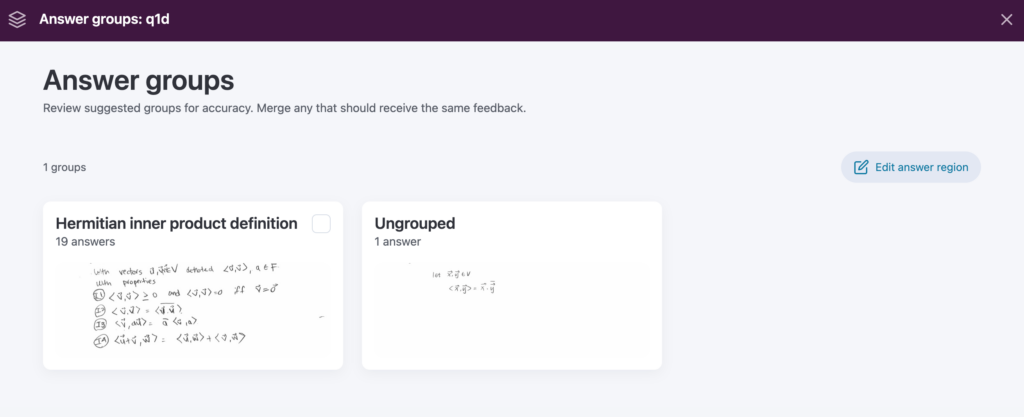
Once the responses are extracted, the groups will be displayed for your review, to be edited, deleted or merged.
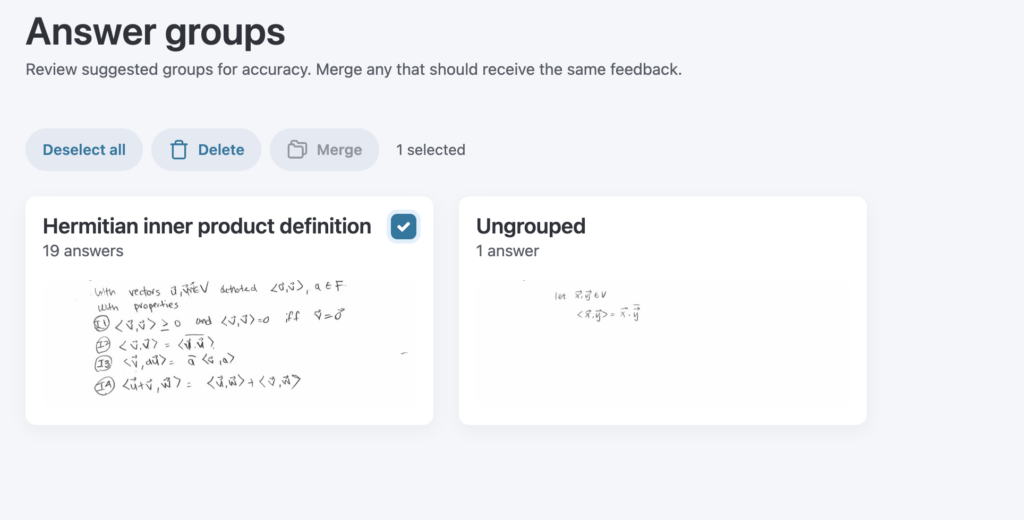
Click into a group and use the slider to zoom in or out.
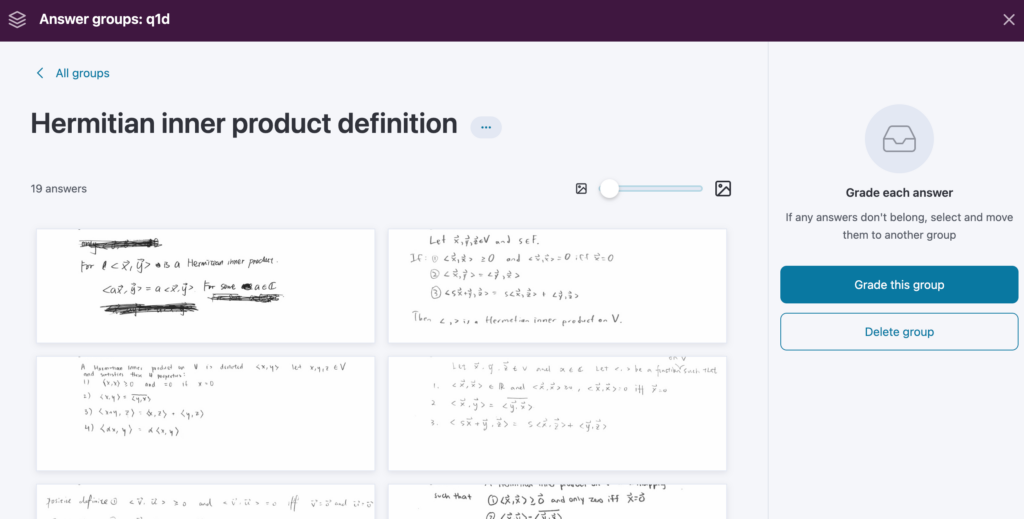
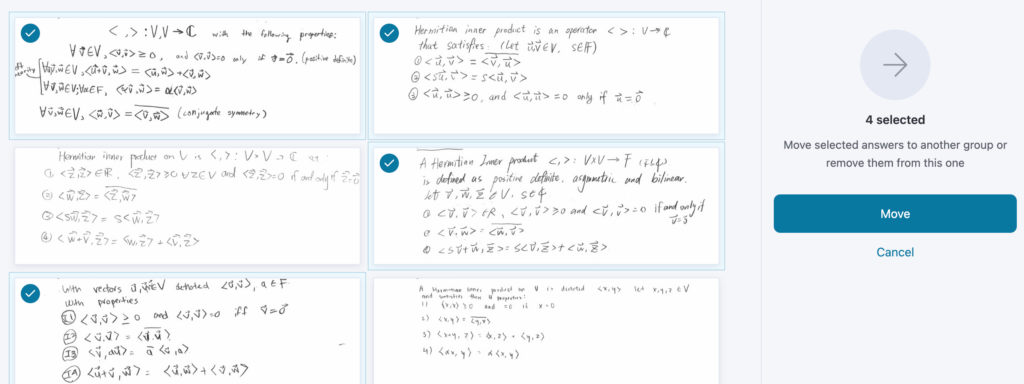
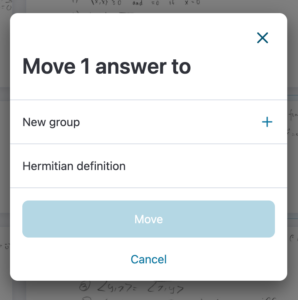
If a response doesn’t belong, you can click to select it, then click to move it to another existing group, or a new group.
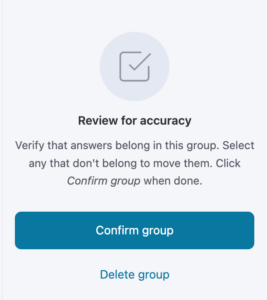
Once you’ve reviewed the groups, click Confirm group to move on to the grading options.
Toggle to Groups in the top toolbar.
Use the box tool to highlight the area on the page where the final response should live. This is the area Crowdmark will extract for grouping.
Select Manual grouping in the right hand toolbar. Crowdmark will begin the work to extract student responses.
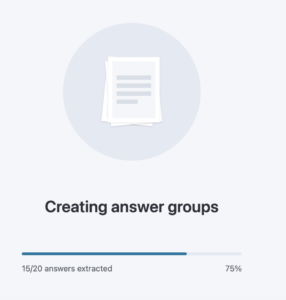
Once the responses are available, they’ll be displayed for you to review. Click into the Ungrouped responses and use the slider to zoom in or out.
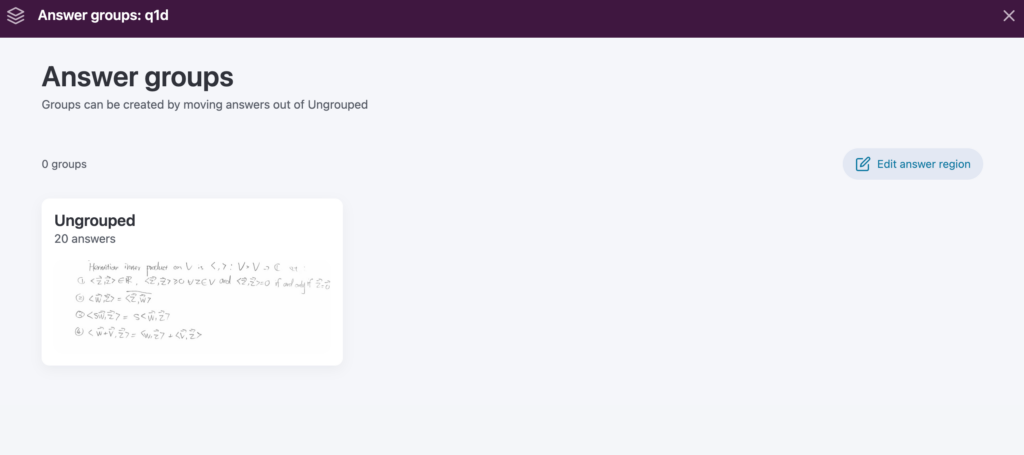
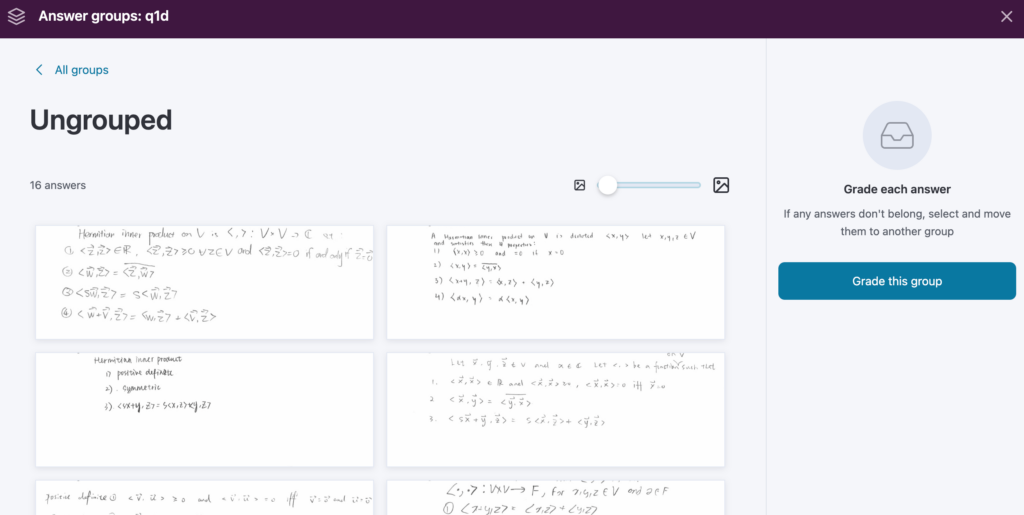
Click to select responses, then click to move them into a group. You’ll be given the option to select an existing group, or create a new one.
Once you’ve reviewed the groups, click Confirm group to move on to the grading options.