
Tags provide a flexible way to organize and bookmark student work and evaluations with your team members, and can be used to filter for any custom criteria required. They can be used before grading to divide or sort responses. While grading, you can use a tags to bookmark exemplary answers, share questions that require another look, or to indicate suspected cheating. Students cannot see tags.
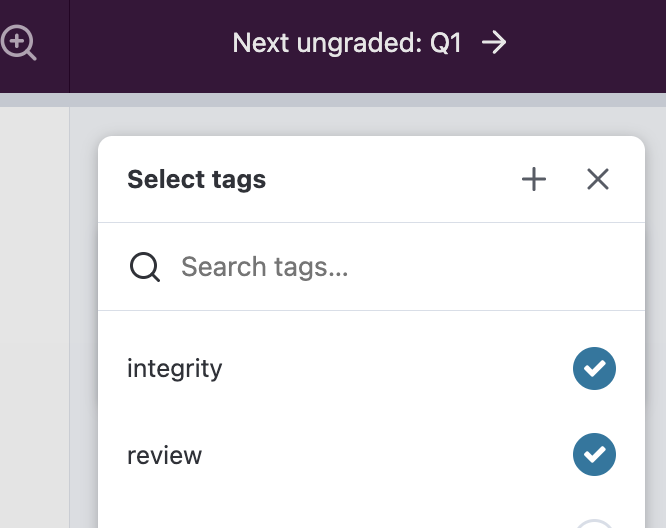
t"). The tag input box will appear.
You can view all responses with a specific tag or group of tags using the filter tool. See Filtering responses to learn more. Tagged responses can be filtered at any time before, during or after grading.